 702c3e2ce6
* Splits mutant_bodyparts.dmi into several subfiles. (#71408)

Splits the `mutant_bodyparts.dmi` file up, as was suggested, but not
implemented, in #69302.

The following new files were created in the `icons\mob\species` folder,
containing the listed sprites:

- `lizard\lizard_misc.dmi`: Snouts, horns, frills, and body markings.
Anything I didn't feel needed an entire file to itself.
- `lizard\lizard_spines.dmi`: Lizard spines, both animated and not.
- `lizard\lizard_tails.dmi`: Lizard tails, both animated and not.
- `human\cat_features.dmi`: Felinid ears and tails.
- `monkey\monkey_tail.dmi`: The monkey tail.
- `mush_cap.dmi`: The lone mushperson cap, so easily forgotten.

Additionally, I moved `wings.dmi` from `mob\clothing` to `mob\species`.
I'm not sure what it was doing there.

`mutant_bodyparts.dmi` was something of a mess, with parts from four
different species thrown together haphazardly. It probably made sense in
earlier days when "mutant humans" were few and far between, but
splitting it up makes it more intuitive to find these sprites, and
brings it in line with other species - namely, moths. It also means that
any future sprites of these types added will not bloat an oversized file
even more.

Moving the wings file to the species folder just makes sense, because
wings are not a type of clothing.
🆑
refactor: Removed mutant_bodyparts.dmi and distributed its sprites in a
more sensible and granular manner.
/🆑

* External Organ Rework: new bodypart_overlay system (#72734)

Bodypart overlays are now drawn by the new /datum/bodypart_overlay
datum.

External organs no longer draw anything and instead add a special
/datum/bodypart_overlay/mutant to the bodypart, which draws everything

Makes it way easier to add custom overlays to limbs, since the whole
system is now modularized and external organs are just one
implementation of it

I haven't moved anything but external organs to this new system, I'll
move eyes, bodymarkings, hair, lipstick etc to this later

New pipeline is as follows:
- External organ added to limb
- External organ adds /datum/bodypart_overlay/mutant to limb to
bodypart_overlays
- Limb updates its icon, looks for all /datum/bodypart_overlay in
bodypart_overlays
- Very cool new overlay on your limb!

closes #71820

🆑
refactor: External organs have been near-completely refactored.
admin: Admin-spawned external organs will load with a random icon and
color
fix: fixes angel wings not working for non-humans (it was so fucking
broken)
fix: fixes external organs being invisible if they werent initialized
with a human
/🆑

External organs are cool but are pretty limited in some ways. Making
stuff like synthetic organs is kinda fucked. I tried and it was dogshit.
Now you can just give an icon state and icon and you're good (using
/datum/bodypart_accessory/simple)

Stuff like eyes, cat ears and hair seem like good choices for extorgans,
but don't quite work for it because their icons work a lot differently.
This solves for it completely since any organ (or object or whatever)
can add it's own icon to a bodypart.

Want to add an iron plate to someones head? Go ahead. Want a heart to
stick out of someones chest? No problem.

Co-authored-by: Mothblocks <35135081+Mothblocks@users.noreply.github.com>

* Makes the whole thing compile, although it most likely doesn't work

* Whoopsie daisy

* Now it's starting to work

* ok monkey

* Fixes tails some more

* Moth wings should be wings not moth wings

* Podpeople hair, yeah.

* Okay no more handle_mutant_bodyparts()

* Removed an useless variable from is_hidden()

* Fixes some more can_draw_on_bodypart (I'm gonna have to fix it upstream too)

* Removes the second useless argument of is_hidden()

* No, cat tails are no longer allowed to be snowflake

* Removes some useless variables from humans

* Whoops I forgot to commit this one

* How did I miss this one?

* Okay, yeah, tails and some other stuff show up now. Pod people hair too. Just many of them don't. Good enough for today.

* Okay so after a lot of pain and suffering, many mutant_bodyparts are now functional

* Everything works, except for ears, some of the taur layering, and moth markings (which never worked it seems)

* Alright skintones seem to work rather well now(?)

* Okay, my bad, now they do

* Moth markings can't be selected and won't be added anymore (since they're broken and integrated into the regular markings system anyway)

* Spines are no longer just matching the color of the limb they're attached to

* Moves taur organ and bodypart_overlay out of the sprite_accessory file for taurs, and fixes the taur rendering

* Linters moment

* Alright, spines are working and overlaying properly now

They just need to have a FRONT overlay for the /tg/ ones if we want them to display above the lizard tails, we already have that for vox spines thankfully.

* Disables moth_markings for good

* Fixes some rendering bugs

* Makes ears work (almost, rest of the code has MODsuit stuff in it too :( )

* Made the MODsuit overlays work :)

* Fixed horns and spines

* Fixes all of the screenshot tests

* Removes the Body Markings option from Appearances, use Augments+ instead (because that one works and is just better)

* Bye bye handle_mutant_bodyparts(), I won't miss you :)

* Forgot to take this out, whoops

* Fixes the moth antennae being unticked

* Removes some commented code in a modular file

* Fixes part of the create_and_destroy unit test

* Fixes a pretty big issue that caused some sprite_accessories to be removed from the global list because of the alter_form action (deep copies ftw)

* Fixes the runtimes related to pod_hair

* Gives the vox a better look in the prefs menu

* Fixes the appearance of functional wings

* Makes synths able to access their robotic wings

* Podpeople don't cause runtimes during CI anymore

* Fixes the random appearance of locked functional wings

* Fixed cat and lizard tails using the /tg/ sprites (we have slightly modified ones)

* Fixes the coloring on multi-colored sprites

* Fixes the code for the screenshot of the mammal screenshots and preview, so it has a tail

* Fixes the screenshot tests for a few species

* Fixes tails going invisible when wagging

* Fixes a runtime with horns

* Fixes showing/hiding mutant bodyparts not working at all

* (Hopefully) fully fixes all the issues related to extra and extra2-related icon_states.

* Fixes synth stuff and starts working on pod hair again

* I DID IT PODPEOPLE HAVE HAIR AGAIN

* Fixes the podpeople hair showing up on more than just podpeople

* Fixes the IPC screens showing up on species outside of synthetics

* Fixes a runtime in the pod_hair and the synth_screen's apply_to_human

* Updates the screenshots for podpeople and synths

* Fixes an issue with a certain type of organs

* Fixes another runtime, whoops

* Fixes the markings from /tg/'s Body Markings not being available in our markings system

* Re-adds support for taur-variants of certain mutant bodyparts

* Hopefully fixes a few more runtimes

* Adds some debug variable in the code for now, likely to be removed later if really necessary. This will make my life easier.

* Whoops, that needed to be backwards. :clown:

* Fixes the top snouts not rendering at all

* Fixes the issues where bodytypes weren't handled properly, and thus snouts were getting squished

* Fixes the weird placement of the Xeno Head Emissives in the prefs menu

* Removes a no-longer-necessary override of post_set_preference() in the limbs_and_markings middleware

* Reverts an unnecessary SKYRAT EDIT inside of commented out code

* No longer creates a new body every time we change prefs in the prefs menu, we reusing now lads

I know there's commented out code but I'm going to remove that in another commit

* Removed some more dead code.

* Fixes jellyfish ears being all white

* Fixes plasmaman limbs not displaying because I accidentally hardcoded the limb_id for all augments to "robotic"

---------

Co-authored-by: lizardqueenlexi <105025397+lizardqueenlexi@users.noreply.github.com>
Co-authored-by: Time-Green <timkoster1@hotmail.com>
Co-authored-by: Mothblocks <35135081+Mothblocks@users.noreply.github.com>
Preferences (by Mothblocks)
This does not contain all the information on specific values--you can find those as doc-comments in relevant paths, such as /datum/preference. Rather, this gives you an overview for creating most preferences, and getting your foot in the door to create more advanced ones.
Anatomy of a preference (A.K.A. how do I make one?)
Most preferences consist of two parts:
- A
/datum/preferencetype. - A tgui representation in a TypeScript file.
Every /datum/preference requires these three values be set:
category- See Categories.savefile_key- The value which will be saved in the savefile. This will also be the identifier for tgui.savefile_identifier- Whether or not this is a character specific preference (PREFERENCE_CHARACTER) or one that affects the player (PREFERENCE_PLAYER). As an example: hair color isPREFERENCE_CHARACTERwhile your UI settings arePREFERENCE_PLAYER, since they do not change between characters.
For the tgui representation, most preferences will create a .tsx file in tgui/packages/tgui/interfaces/PreferencesMenu/preferences/features/. If your preference is a character preference, make a new file in character_preferences. Otherwise, put it in game_preferences. The filename does not matter, and this file can hold multiple relevant preferences if you would like.
From here, you will want to write code resembling:
import { Feature } from "../base";

export const savefile_key_here: Feature<T> = {
  name: "Preference Name Here",
  component: Component,

  // Necessary for game preferences, unused for others
  category: "CATEGORY",

  // Optional, only shown in game preferences
  description: "This preference will blow your mind!",
}
T and Component depend on the type of preference you're making. Here are all common examples...
Numeric preferences
Examples include age and FPS.
A numeric preference derives from /datum/preference/numeric.
/datum/preference/numeric/legs
	category = PREFERENCE_CATEGORY_NON_CONTEXTUAL
	savefile_identifier = PREFERENCE_CHARACTER
	savefile_key = "legs"

	minimum = 1
	maximum = 8
You can optionally provide a step field. This value is 1 by default, meaning only integers are accepted.
Your .tsx file would look like:
import { Feature, FeatureNumberInput } from "../base";

export const legs: Feature<number> = {
  name: "Legs",
  component: FeatureNumberInput,
}
Toggle preferences
Examples include enabling tooltips.
/datum/preference/toggle/enable_breathing
	category = PREFERENCE_CATEGORY_NON_CONTEXTUAL
	savefile_identifier = PREFERENCE_CHARACTER
	savefile_key = "enable_breathing"

	// Optional, TRUE by default
	default_value = FALSE
Your .tsx file would look like:
import { CheckboxInput, FeatureToggle } from "../base";

export const enable_breathing: FeatureToggle = {
  name: "Enable breathing",
  component: CheckboxInput,
}
Choiced preferences
A choiced preference is one where the only options are in a distinct few amount of choices. Examples include skin tone, shirt, and UI style.
To create one, derive from /datum/preference/choiced.
/datum/preference/choiced/favorite_drink
	category = PREFERENCE_CATEGORY_NON_CONTEXTUAL
	savefile_identifier = PREFERENCE_CHARACTER
	savefile_key = "favorite_drink"
Now we need to tell the game what the choices are. We do this by overriding init_possible_values(). This will return a list of possible options.
/datum/preference/choiced/favorite_drink/init_possible_values()
	return list(
		"Milk",
		"Cola",
		"Water",
	)
Your .tsx file would then look like:
import { FeatureChoiced, FeatureDropdownInput } from "../base";

export const favorite_drink: FeatureChoiced = {
  name: "Favorite drink",
  component: FeatureDropdownInput,
};
This will create a dropdown input for your preference.
Choiced preferences - Icons
Choiced preferences can generate icons. This is how the clothing/species preferences work, for instance. However, if we just want a basic dropdown input with icons, it would look like this:
/datum/preference/choiced/favorite_drink
	category = PREFERENCE_CATEGORY_NON_CONTEXTUAL
	savefile_identifier = PREFERENCE_CHARACTER
	savefile_key = "favorite_drink"
	should_generate_icons = TRUE // NEW! This is necessary.

// Instead of returning a flat list, this now returns an assoc list
// of values to icons.
/datum/preference/choiced/favorite_drink/init_possible_values()
	return list(
		"Milk" = icon('drinks.dmi', "milk"),
		"Cola" = icon('drinks.dmi', "cola"),
		"Water" = icon('drinks.dmi', "water"),
	)
Then, change your .tsx file to look like:
import { FeatureChoiced, FeatureIconnedDropdownInput } from "../base";

export const favorite_drink: FeatureChoiced = {
  name: "Favorite drink",
  component: FeatureIconnedDropdownInput,
};
Choiced preferences - Display names
Sometimes the values you want to save in code aren't the same as the ones you want to display. You can specify display names to change this.
The only thing you will add is "compiled data".
/datum/preference/choiced/favorite_drink/compile_constant_data()
	var/list/data = ..()

	// An assoc list of values to display names
	data[CHOICED_PREFERENCE_DISPLAY_NAMES] = list(
		"Milk" = "Delicious Milk",
		"Cola" = "Crisp Cola",
		"Water" = "Plain Ol' Water",
	)

	return data
Your .tsx file does not change. The UI will figure it out for you!
Color preferences
These refer to colors, such as your OOC color. When read, these values will be given as 6 hex digits, without the pound sign.
/datum/preference/color/eyeliner_color
	category = PREFERENCE_CATEGORY_NON_CONTEXTUAL
	savefile_identifier = PREFERENCE_CHARACTER
	savefile_key = "eyeliner_color"
Your .tsx file would look like:
import { FeatureColorInput, Feature } from "../base";

export const eyeliner_color: Feature<string> = {
  name: "Eyeliner color",
  component: FeatureColorInput,
};
Name preferences
These refer to an alternative name. Examples include AI names and backup human names.
These exist in code/modules/client/preferences/names.dm.
These do not need a .ts file, and will be created in the UI automatically.
/datum/preference/name/doctor
	savefile_key = "doctor_name"

	// The name on the UI
	explanation = "Doctor name"

	// This groups together with anything else with the same group
	group = "medicine"

	// Optional, if specified the UI will show this name actively
	// when the player is a medical doctor.
	relevant_job = /datum/job/medical_doctor
Making your preference do stuff
There are a handful of procs preferences can use to act on their own:
/// Apply this preference onto the given client.
/// Called when the savefile_identifier == PREFERENCE_PLAYER.
/datum/preference/proc/apply_to_client(client/client, value)

/// Fired when the preference is updated.
/// Calls apply_to_client by default, but can be overridden.
/datum/preference/proc/apply_to_client_updated(client/client, value)

/// Apply this preference onto the given human.
/// Must be overriden by subtypes.
/// Called when the savefile_identifier == PREFERENCE_CHARACTER.
/datum/preference/proc/apply_to_human(mob/living/carbon/human/target, value)
For example, /datum/preference/numeric/age contains:
/datum/preference/numeric/age/apply_to_human(mob/living/carbon/human/target, value)
	target.age = value
If your preference is PREFERENCE_CHARACTER, it MUST override apply_to_human, even if just to immediately return.
You can also read preferences directly with prefs.read_preference(/datum/preference/type/here), which will return the stored value.
Categories
Every preference needs to be in a category. These can be found in code/__DEFINES/preferences.dm.
/// These will be shown in the character sidebar, but at the bottom.
#define PREFERENCE_CATEGORY_FEATURES "features"

/// Any preferences that will show to the sides of the character in the setup menu.
#define PREFERENCE_CATEGORY_CLOTHING "clothing"

/// Preferences that will be put into the 3rd list, and are not contextual.
#define PREFERENCE_CATEGORY_NON_CONTEXTUAL "non_contextual"

/// Will be put under the game preferences window.
#define PREFERENCE_CATEGORY_GAME_PREFERENCES "game_preferences"

/// These will show in the list to the right of the character preview.
#define PREFERENCE_CATEGORY_SECONDARY_FEATURES "secondary_features"

/// These are preferences that are supplementary for main features,
/// such as hair color being affixed to hair.
#define PREFERENCE_CATEGORY_SUPPLEMENTAL_FEATURES "supplemental_features"
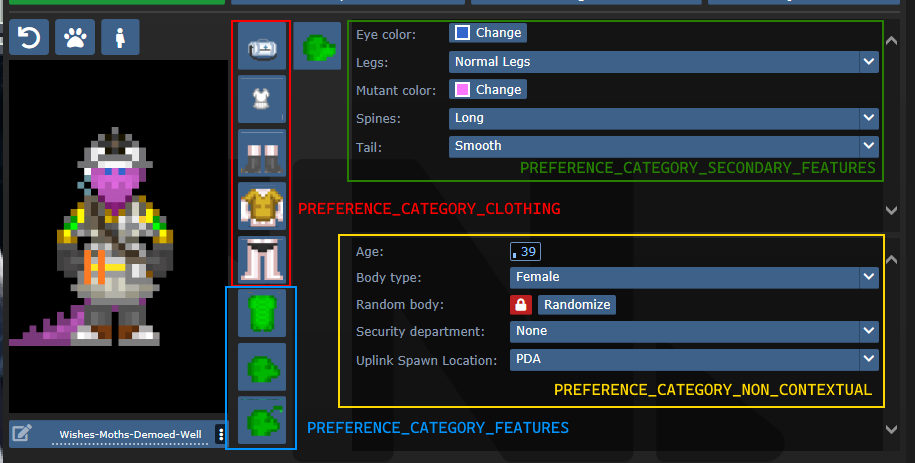
SECONDARY_FEATURES or NON_CONTEXTUAL?
Secondary features tend to be species specific. Non contextual features shouldn't change much from character to character.
Default values and randomization
There are three procs to be aware of in regards to this topic:
create_default_value(). This is used when a value deserializes improperly or when a new character is created.create_informed_default_value(datum/preferences/preferences)- Used for more complicated default values, like how names require the gender. Will callcreate_default_value()by default.create_random_value(datum/preferences/preferences)- Explicitly used for random values, such as when a character is being randomized.
create_default_value() in most preferences will create a random value. If this is a problem (like how default characters should always be human), you can override create_default_value(). By default (without overriding create_random_value), random values are just default values.
Advanced - Server data
As previewed in the display names implementation, there exists a compile_constant_data() proc you can override.
Compiled data is used wherever the server needs to give the client some value it can't figure out on its own. Skin tones use this to tell the client what colors they represent, for example.
Compiled data is sent to the serverData field in the FeatureValueProps.
Advanced - Creating your own tgui component
If you have good knowledge with tgui (especially TypeScript), you'll be able to create your own component to represent preferences.
The component field in a feature accepts any component that accepts FeatureValueProps<TReceiving, TSending = TReceiving, TServerData = undefined>.
This will give you the fields:
act: typeof sendAct,
featureId: string,
handleSetValue: (newValue: TSending) => void,
serverData: TServerData | undefined,
shrink?: boolean,
value: TReceiving,
act is the same as the one you get from useBackend.
featureId is the savefile_key of the feature.
handleSetValue is a function that, when called, will tell the server the new value, as well as changing the value immediately locally.
serverData is the server data, if it has been fetched yet (and exists).
shrink is whether or not the UI should appear smaller. This is only used for supplementary features.
value is the current value, could be predicted (meaning that the value was changed locally, but has not yet reached the server).
For a basic example of how this can look, observe CheckboxInput:
export const CheckboxInput = (
  props: FeatureValueProps<BooleanLike, boolean>
) => {
  return (<Button.Checkbox
    checked={!!props.value}
    onClick={() => {
      props.handleSetValue(!props.value);
    }}
  />);
};
Advanced - Middleware
A /datum/preference_middleware is a way to inject your own data at specific points, as well as hijack actions.
Middleware can hijack actions by specifying action_delegations:
/datum/preference_middleware/congratulations
	action_delegations = list(
		"congratulate_me" = PROC_REF(congratulate_me),
	)

/datum/preference_middleware/congratulations/proc/congratulate_me(list/params, mob/user)
	to_chat(user, span_notice("Wow, you did a great job learning about middleware!"))

	return TRUE
Middleware can inject its own data at several points, such as providing new UI assets, compiled data (used by middleware such as quirks to tell the client what quirks exist), etc. Look at code/modules/client/preferences/middleware/_middleware.dm for full information.
Antagonists
In order to make an antagonist selectable, you must do a few things:
- Your antagonist needs an icon.
- Your antagonist must be in a Dynamic ruleset. The ruleset must specify the antagonist as its
antag_flag. - Your antagonist needs a file in
tgui/packages/tgui/interfaces/PreferencesMenu/antagonists/antagonists/filename.ts. This file name MUST be theantag_flagof your ruleset, with nothing but letters remaining (e.g. "Nuclear Operative" ->nuclearoperative). - Add it to
special_roles.
Creating icons
If you are satisfied with your icon just being a dude with some clothes, then you can specify preview_outfit in your /datum/antagonist.
Space Ninja, for example, looks like:
/datum/antagonist/ninja
	preview_outift = /datum/outfit/ninja
However, if you want to get creative, you can override /get_preview_icon(). This proc should return an icon of size ANTAGONIST_PREVIEW_ICON_SIZExANTAGONIST_PREVIEW_ICON_SIZE.
There are some helper procs you can use as well. render_preview_outfit(outfit_type) will take an outfit and give you an icon of someone wearing those clothes. finish_preview_outfit will, given an icon, resize it appropriately and zoom in on the head. Note that this will look bad on anything that isn't a human, so if you have a non-human antagonist (such as sentient disease), just run icon.Scale(ANTAGONIST_PREVIEW_ICON_SIZE, ANTAGONIST_PREVIEW_ICON_SIZE).
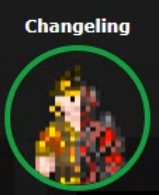
For inspiration, here is changeling's:
/datum/antagonist/changeling/get_preview_icon()
	var/icon/final_icon = render_preview_outfit(/datum/outfit/changeling)
	var/icon/split_icon = render_preview_outfit(/datum/outfit/job/engineer)

	final_icon.Shift(WEST, world.icon_size / 2)
	final_icon.Shift(EAST, world.icon_size / 2)

	split_icon.Shift(EAST, world.icon_size / 2)
	split_icon.Shift(WEST, world.icon_size / 2)

	final_icon.Blend(split_icon, ICON_OVERLAY)

	return finish_preview_icon(final_icon)
...which creates:
Creating the tgui representation
In the .ts file you created earlier, you must now give the information of your antagonist. For reference, this is the changeling's:
import { Antagonist, Category } from "../base";
import { multiline } from "common/string";

const Changeling: Antagonist = {
  key: "changeling", // This must be the same as your filename
  name: "Changeling",
  description: [
    multiline`
      A highly intelligent alien predator that is capable of altering their
      shape to flawlessly resemble a human.
    `,

    multiline`
      Transform yourself or others into different identities, and buy from an
      arsenal of biological weaponry with the DNA you collect.
    `,
  ],
  category: Category.Roundstart, // Category.Roundstart, Category.Midround, or Category.Latejoin
};

export default Changeling;
Readying the Dynamic ruleset
You already need to create a Dynamic ruleset, so in order to get your antagonist recognized, you just need to specify antag_flag. This must be unique per ruleset.
Two other values to note are antag_flag_override and antag_preference.
antag_flag_override exists for cases where you want the banned antagonist to be separate from antag_flag. As an example: roundstart, midround, and latejoin traitors have separate antag_flag, but all have antag_flag_override = ROLE_TRAITOR. This is because admins want to ban a player from Traitor altogether, not specific rulesets.
If antag_preference is set, it will refer to that preference instead of antag_flag. This is used for clown operatives, which we want to be on the same preference as standard nuke ops, but must specify a unique antag_flag for.
Updating special_roles
In code/__DEFINES/role_preferences.dm (the same place you'll need to make your ROLE_* defined), simply add your antagonist to the special_roles assoc list. The key is your ROLE, the value is the number of days since your first game in order to play as that antagonist.