 6808a082eb
## About The Previous Pull Request
#85308 reverted by #85929

~~Causes the round to not start when a player isn't eligible for any
jobs at a specific priority level due to runtimes trying to `pick()`
from an empty list aborting the entire job assignment stack.~~
(Fixed???? by
e0e9f2f430)
Maybe we should test merge this for a mo just to make sure no more
cheeky runtimes pop up before merging.
## About The Pull Request
This PR does a couple of minor things:
Makes the job debug logging a bit easier to follow.
Minorly brings some SSjob code up to code standards, converting proc
names to snake_case and doing some otherm is cleanup.
Refactored some stuff into different procs, updated some comments.
And some major things:
Changes the job assignment logic.
Old behaviour
> Assign dynamic priority roles
> Force one Head of Staff (if possible)
> Assign all AIs
> Assign overflow roles (bugged in 2 ways)
> Shuffle the available jobs list once, at the start of the random job
assignment loop
> Pick and assign random jobs for random players from High prefs down,
with a priority on Head of Staff roles
> Handle everyone that couldn't be assigned a random job
New behaviour
> Assign dynamic priority roles
> Assign all Head of Staff roles to players with High prefs
> If no Head of Staff was made in the above way, force one Head of Staff
(if possible)
> Assign all AIs
> Assign overflow roles (fixed)
> Prioritise and fill unfilled head roles at each job priority pref
level, from High prefs down.
> Build a list of all jobs that each unassigned player could be eligible
for at the above pref level.
> Pick a job from that list at random and assign it to the player.
> Handle everyone that couldn't be assigned a random job.
In reality there should be little impact on overall job assignment, the
code changes read more as semantics. For example, the priority check for
filling Head slots will have the same candidate pool in both old and new
versions, but in the new version we're more clearly saying that Heads
are important and we want to prioritise filling them for the sake of
round progression even though the outcome in new and old is the same.
A key change will lead to an increase in assistants - Overflow fixes.
Currently the code block to do early assignments to the Overflow role
doesn't work - or works but not as you'd expect. The idea was is that
because enabling the Overflow role in the prefs menu is an On/Off toggle
that sets the job to High priority when enabled and prevents any other
High priority pref, players that have the Overflow role enabled will
**always** get it. It's their highest priority job with infinite slots.
So we do a pass right at the start to give everyone with the Overflow
role enabled that role and save us wasting time later on in random job
code giving them that same role but with more work.
The problem is the code for this only assigns the Overflow role to
people with it set to Low priority in their prefs, resulting in log
readouts like:
```
[2024-07-27 09:49:43.469] DEBUG-JOB: DO, Running Overflow Check 1
[2024-07-27 09:49:43.469] DEBUG-JOB: Running FOC, Job: /datum/job/assistant, Level: Low Priority
[2024-07-27 09:49:43.472] DEBUG-JOB: FOC player job enabled at wrong level, Player: Radioprague, TheirLevel: Medium Priority, ReqLevel: Low Priority
[2024-07-27 09:49:43.472] DEBUG-JOB: FOC player job enabled at wrong level, Player: Caluan, TheirLevel: High Priority, ReqLevel: Low Priority
[2024-07-27 09:49:43.473] DEBUG-JOB: FOC player job enabled at wrong level, Player: Caractaser, TheirLevel: High Priority, ReqLevel: Low Priority
[2024-07-27 09:49:43.473] DEBUG-JOB: FOC player job enabled at wrong level, Player: Apsua, TheirLevel: High Priority, ReqLevel: Low Priority
[2024-07-27 09:49:43.475] DEBUG-JOB: FOC player job enabled at wrong level, Player: Bebrus2, TheirLevel: Medium Priority, ReqLevel: Low Priority
[2024-07-27 09:49:43.475] DEBUG-JOB: AC1, Candidates: 0
```
Where nobody gets pre-assigned the overflow role because their prefs are
all set to the High priority from being toggled... Except wait a second,
some people have it at Medium priority when it should just be a No
Role/High Priority Role toggle?
And herein we meet a problem. My hypothesis is that traits and stuff
that change the overflow have allowed players to set the "ordinary"
overflow role of Assistant to Medium and/or Low priority.
This still shows as enabled in the prefs menu, but leads to an outcome
where a player with assistant enabled is assigned Cook instead.
```
[2024-07-27 09:49:47.775] DEBUG-JOB: DO, Running Overflow Check 1
[2024-07-27 09:49:47.775] DEBUG-JOB: Running FOC, Job: /datum/job/assistant, Level: Low Priority
...
[2024-07-27 09:49:43.475] DEBUG-JOB: FOC player job enabled at wrong level, Player: Bebrus2, TheirLevel: Medium Priority, ReqLevel: Low Priority
...
[2024-07-27 09:49:47.987] DEBUG-JOB: Running AR, Player: Bebrus2, Job: /datum/job/cook, LateJoin: 0
```
So players with the Overflow job pref set to Low (an unexpected state,
should be disabled or High) would be guaranteed to get that role if none
of the higher priority Head of Staff/AI/Dynamic roles took over via the
bugged "force overflow for people with the pref enabled" proc.
Players with the Overflow job pref set to High would be guaranteed to
get that role if none of the higher priority Head of Staff/AI/Dynamic
roles took over via the random job assignment code giving them their
Highest priority role thanks to the infinite job slots of the Overflow.
And players with the Overflow job pref set to Medium (an unexpected
state, should be disabled or High) would get Assistant if the shuffle
step of the available jobs list put Assisstant before any of the other
jobs they had prefs enabled for at Medium that weren't already filled,
otherwise they'd get another random job.
This code is now changed to ignore the priority the player has set when
looking for people to fill the overflow role. As long as it **is**
enabled, the player will get it unless they're forced into a dynamic
ruleset role (AI when malf rolls) or a Head of Staff role due to their
other prefs (they have RD set to med or low, and no other player has a
Head of Staff at high so they get randomly picked and miss the overflow
role).
This will increase the number of assistants in shifts where their pref
state has Assisstant in the bugged Medium priority, but doesn't change
it for bugged Low and not-bugged High/On priority.
On the other side of the coin, we have how the random jobs are picked.
They're kinda not random, and I noticed this reading the logs then
reading the code.
The list of available jobs to pick from is randomly shuffled - but only
**once**. All players pull from a list of jobs in the same order. So you
end up with a log block like this:
```
[2024-07-27 09:49:47.985] DEBUG-JOB: DO pass, Player: Pierow, Level:3, Job:Botanist
[2024-07-27 09:49:47.985] DEBUG-JOB: Running AR, Player: Pierow, Job: /datum/job/botanist, LateJoin: 0
[2024-07-27 09:49:47.985] DEBUG-JOB: Player: Pierow is now Rank: Botanist, JCP:0, JPL:2
[2024-07-27 09:49:47.986] DEBUG-JOB: DO pass, Player: Daddos, Level:3, Job:Botanist
[2024-07-27 09:49:47.986] DEBUG-JOB: Running AR, Player: Daddos, Job: /datum/job/botanist, LateJoin: 0
[2024-07-27 09:49:47.986] DEBUG-JOB: Player: Daddos is now Rank: Botanist, JCP:1, JPL:2
[2024-07-27 09:49:47.986] DEBUG-JOB: FOC job filled and not overflow, Player: Bebrus2, Job: /datum/job/botanist, Current: 2, Limit: 2
[2024-07-27 09:49:47.987] DEBUG-JOB: FOC player job not enabled, Player: Bebrus2
[2024-07-27 09:49:47.987] DEBUG-JOB: DO pass, Player: Bebrus2, Level:3, Job:Cook
[2024-07-27 09:49:47.987] DEBUG-JOB: Running AR, Player: Bebrus2, Job: /datum/job/cook, LateJoin: 0
[2024-07-27 09:49:47.988] DEBUG-JOB: Player: Bebrus2 is now Rank: Cook, JCP:0, JPL:1
[2024-07-27 09:49:47.988] DEBUG-JOB: FOC player job not enabled, Player: Redwizz
[2024-07-27 09:49:47.988] DEBUG-JOB: FOC job filled and not overflow, Player: Redwizz, Job: /datum/job/cook, Current: 1, Limit: 1
```
The list is shuffled into an order of something like `list("Scientist",
"Botanist", "Cook", "Sec Officer", ...)` then iterated over for each
player. So every random job selection goes:
> "Does Player1 have Scientist enabled and at the right priority? No?
Okay, Botanist? Yes? You get botanist."
> "Does Player2 have Scientist enabled and at the right priority? No?
Okay, Botanist? Yes? You get botanist."
> "Does Player3 have Scientist enabled and at the right priority? No?
Okay, Botanist has no slots left so we'll remove it from the list. Okay,
Cook? Yes? You get cook."
> "Does Player4 have Scientist enabled and at the right priority? No?
Okay, Cook has no slots left so we'll remove it from the list. Okay, Sec
Officer? ..."
This can lead to stacked individual departments if it gets randomly
rolled to the start of the list in the shuffle, and completely empty
departments if they end up at the end.
On high pop shifts this is probably less of an issue. Player prefs add
noise to this and as departments at the front fill up, those at the back
pick up some of the lower pref players.
But have you ever had a shift where there's just like... No fucking sec
even though there's tons of players? The logging (before I made changes
in this PR) was a bit ass, but my hypothesis there is that sec officer
was shuffled right at the end of the random job list, so every other
department was filled up before sec officers were picked.
To mitigate this, I made the list shuffle every single time the game
picks a random available job for the player. This should lead to a more
balanced selection of available jobs by avoiding situations where the
code is biased towards packing some departments by accident.
## Why It's Good For The Game
Overflow fixes mean people who go to their prefs and see the Overflow
Role is On will all have the same experience - They will be the Overflow
role.
More random random job selection should prevent individual departments
having a jobs be stacked when it would have otherwise been possible for
a more balanced selection but the code unintentially biased random
departments to be overstaffed and understaffed each shift.
## Changelog
🆑
fix: Having the Overflow Role set to On will properly ensure you get
that role at a High priority as intended by the game code.
fix: Job selection is now a little bit more random. Fixes an
unintentional bias in random job assignment that could lead to
feast-or-famine for roles where everyone is assigned one job and nobody
is assigned another job.
/🆑
Preferences (by Mothblocks)
This does not contain all the information on specific values--you can find those as doc-comments in relevant paths, such as /datum/preference. Rather, this gives you an overview for creating most preferences, and getting your foot in the door to create more advanced ones.
Anatomy of a preference (A.K.A. how do I make one?)
Most preferences consist of two parts:
- A
/datum/preferencetype. - A tgui representation in a TypeScript file.
Every /datum/preference requires these three values be set:
category- See Categories.savefile_key- The value which will be saved in the savefile. This will also be the identifier for tgui.savefile_identifier- Whether or not this is a character specific preference (PREFERENCE_CHARACTER) or one that affects the player (PREFERENCE_PLAYER). As an example: hair color isPREFERENCE_CHARACTERwhile your UI settings arePREFERENCE_PLAYER, since they do not change between characters.
For the tgui representation, most preferences will create a .tsx file in tgui/packages/tgui/interfaces/PreferencesMenu/preferences/features/. If your preference is a character preference, make a new file in character_preferences. Otherwise, put it in game_preferences. The filename does not matter, and this file can hold multiple relevant preferences if you would like.
From here, you will want to write code resembling:
import { Feature } from "../base";

export const savefile_key_here: Feature<T> = {
  name: "Preference Name Here",
  component: Component,

  // Necessary for game preferences, unused for others
  category: "CATEGORY",

  // Optional, shown as a tooltip
  description: "This preference will blow your mind!",
}
T and Component depend on the type of preference you're making. Here are all common examples...
Numeric preferences
Examples include age and FPS.
A numeric preference derives from /datum/preference/numeric.
/datum/preference/numeric/legs
	category = PREFERENCE_CATEGORY_NON_CONTEXTUAL
	savefile_identifier = PREFERENCE_CHARACTER
	savefile_key = "legs"

	minimum = 1
	maximum = 8
You can optionally provide a step field. This value is 1 by default, meaning only integers are accepted.
Your .tsx file would look like:
import { Feature, FeatureNumberInput } from "../base";

export const legs: Feature<number> = {
  name: "Legs",
  component: FeatureNumberInput,
}
Toggle preferences
Examples include enabling tooltips.
/datum/preference/toggle/enable_breathing
	category = PREFERENCE_CATEGORY_NON_CONTEXTUAL
	savefile_identifier = PREFERENCE_CHARACTER
	savefile_key = "enable_breathing"

	// Optional, TRUE by default
	default_value = FALSE
Your .tsx file would look like:
import { CheckboxInput, FeatureToggle } from "../base";

export const enable_breathing: FeatureToggle = {
  name: "Enable breathing",
  component: CheckboxInput,
}
Choiced preferences
A choiced preference is one where the only options are in a distinct few amount of choices. Examples include skin tone, shirt, and UI style.
To create one, derive from /datum/preference/choiced.
/datum/preference/choiced/favorite_drink
	category = PREFERENCE_CATEGORY_NON_CONTEXTUAL
	savefile_identifier = PREFERENCE_CHARACTER
	savefile_key = "favorite_drink"
Now we need to tell the game what the choices are. We do this by overriding init_possible_values(). This will return a list of possible options.
/datum/preference/choiced/favorite_drink/init_possible_values()
	return list(
		"Milk",
		"Cola",
		"Water",
	)
Your .tsx file would then look like:
import { FeatureChoiced, FeatureDropdownInput } from "../base";

export const favorite_drink: FeatureChoiced = {
  name: "Favorite drink",
  component: FeatureDropdownInput,
};
This will create a dropdown input for your preference.
Choiced preferences - Icons
Choiced preferences can generate icons. This is how the clothing/species preferences work, for instance. However, if we just want a basic dropdown input with icons, it would look like this:
/datum/preference/choiced/favorite_drink
	category = PREFERENCE_CATEGORY_NON_CONTEXTUAL
	savefile_identifier = PREFERENCE_CHARACTER
	savefile_key = "favorite_drink"
	should_generate_icons = TRUE // NEW! This is necessary.

/datum/preference/choiced/favorite_drink/init_possible_values()
	return list("Milk", "Cola", "Water")

// New! This proc will get called for every value.
/datum/preference/choiced/favorite_drink/icon_for(value)
	switch (value)
		if ("Milk")
			return icon('drinks.dmi', "milk")
		if ("Cola")
			return icon('drinks.dmi', "cola")
		if ("Water")
			return icon('drinks.dmi', "water")
Then, change your .tsx file to look like:
import { FeatureChoiced, FeatureIconnedDropdownInput } from "../base";

export const favorite_drink: FeatureChoiced = {
  name: "Favorite drink",
  component: FeatureIconnedDropdownInput,
};
Choiced preferences - Display names
Sometimes the values you want to save in code aren't the same as the ones you want to display. You can specify display names to change this.
The only thing you will add is "compiled data".
/datum/preference/choiced/favorite_drink/compile_constant_data()
	var/list/data = ..()

	// An assoc list of values to display names
	data[CHOICED_PREFERENCE_DISPLAY_NAMES] = list(
		"Milk" = "Delicious Milk",
		"Cola" = "Crisp Cola",
		"Water" = "Plain Ol' Water",
	)

	return data
Your .tsx file does not change. The UI will figure it out for you!
Color preferences
These refer to colors, such as your OOC color. When read, these values will be given as 6 hex digits, without the pound sign.
/datum/preference/color/eyeliner_color
	category = PREFERENCE_CATEGORY_NON_CONTEXTUAL
	savefile_identifier = PREFERENCE_CHARACTER
	savefile_key = "eyeliner_color"
Your .tsx file would look like:
import { FeatureColorInput, Feature } from "../base";

export const eyeliner_color: Feature<string> = {
  name: "Eyeliner color",
  component: FeatureColorInput,
};
Name preferences
These refer to an alternative name. Examples include AI names and backup human names.
These exist in code/modules/client/preferences/names.dm.
These do not need a .ts file, and will be created in the UI automatically.
/datum/preference/name/doctor
	savefile_key = "doctor_name"

	// The name on the UI
	explanation = "Doctor name"

	// This groups together with anything else with the same group
	group = "medicine"

	// Optional, if specified the UI will show this name actively
	// when the player is a medical doctor.
	relevant_job = /datum/job/medical_doctor
Making your preference do stuff
There are a handful of procs preferences can use to act on their own:
/// Apply this preference onto the given client.
/// Called when the savefile_identifier == PREFERENCE_PLAYER.
/datum/preference/proc/apply_to_client(client/client, value)

/// Fired when the preference is updated.
/// Calls apply_to_client by default, but can be overridden.
/datum/preference/proc/apply_to_client_updated(client/client, value)

/// Apply this preference onto the given human.
/// Must be overriden by subtypes.
/// Called when the savefile_identifier == PREFERENCE_CHARACTER.
/datum/preference/proc/apply_to_human(mob/living/carbon/human/target, value)
For example, /datum/preference/numeric/age contains:
/datum/preference/numeric/age/apply_to_human(mob/living/carbon/human/target, value)
	target.age = value
If your preference is PREFERENCE_CHARACTER, it MUST override apply_to_human, even if just to immediately return.
You can also read preferences directly with prefs.read_preference(/datum/preference/type/here), which will return the stored value.
Categories
Every preference needs to be in a category. These can be found in code/__DEFINES/preferences.dm.
/// These will be shown in the character sidebar, but at the bottom.
#define PREFERENCE_CATEGORY_FEATURES "features"

/// Any preferences that will show to the sides of the character in the setup menu.
#define PREFERENCE_CATEGORY_CLOTHING "clothing"

/// Preferences that will be put into the 3rd list, and are not contextual.
#define PREFERENCE_CATEGORY_NON_CONTEXTUAL "non_contextual"

/// Will be put under the game preferences window.
#define PREFERENCE_CATEGORY_GAME_PREFERENCES "game_preferences"

/// These will show in the list to the right of the character preview.
#define PREFERENCE_CATEGORY_SECONDARY_FEATURES "secondary_features"

/// These are preferences that are supplementary for main features,
/// such as hair color being affixed to hair.
#define PREFERENCE_CATEGORY_SUPPLEMENTAL_FEATURES "supplemental_features"
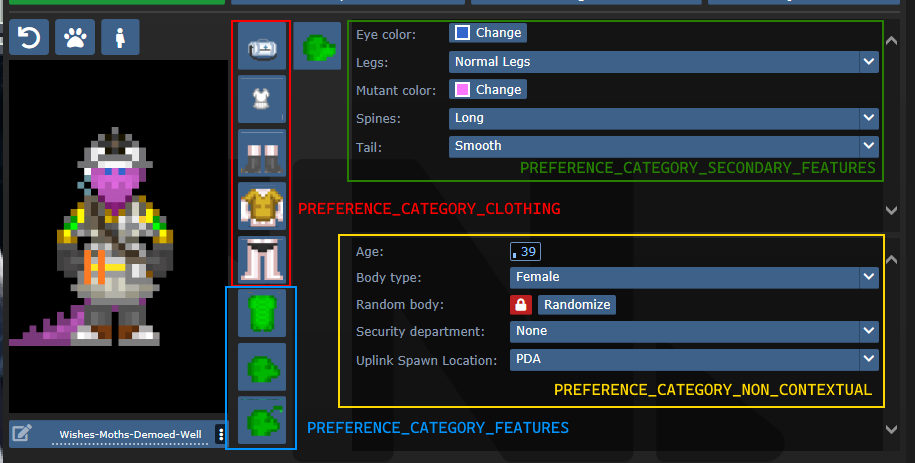
SECONDARY_FEATURES or NON_CONTEXTUAL?
Secondary features tend to be species specific. Non contextual features shouldn't change much from character to character.
Default values and randomization
There are three procs to be aware of in regards to this topic:
create_default_value(). This is used when a value deserializes improperly or when a new character is created.create_informed_default_value(datum/preferences/preferences)- Used for more complicated default values, like how names require the gender. Will callcreate_default_value()by default.create_random_value(datum/preferences/preferences)- Explicitly used for random values, such as when a character is being randomized.
create_default_value() in most preferences will create a random value. If this is a problem (like how default characters should always be human), you can override create_default_value(). By default (without overriding create_random_value), random values are just default values.
Advanced - Server data
As previewed in the display names implementation, there exists a compile_constant_data() proc you can override.
Compiled data is used wherever the server needs to give the client some value it can't figure out on its own. Skin tones use this to tell the client what colors they represent, for example.
Compiled data is sent to the serverData field in the FeatureValueProps.
Advanced - Creating your own tgui component
If you have good knowledge with tgui (especially TypeScript), you'll be able to create your own component to represent preferences.
The component field in a feature accepts any component that accepts FeatureValueProps<TReceiving, TSending = TReceiving, TServerData = undefined>.
This will give you the fields:
act: typeof sendAct,
featureId: string,
handleSetValue: (newValue: TSending) => void,
serverData: TServerData | undefined,
shrink?: boolean,
value: TReceiving,
act is the same as the one you get from useBackend.
featureId is the savefile_key of the feature.
handleSetValue is a function that, when called, will tell the server the new value, as well as changing the value immediately locally.
serverData is the server data, if it has been fetched yet (and exists).
shrink is whether or not the UI should appear smaller. This is only used for supplementary features.
value is the current value, could be predicted (meaning that the value was changed locally, but has not yet reached the server).
For a basic example of how this can look, observe CheckboxInput:
export const CheckboxInput = (
  props: FeatureValueProps<BooleanLike, boolean>
) => {
  return (<Button.Checkbox
    checked={!!props.value}
    onClick={() => {
      props.handleSetValue(!props.value);
    }}
  />);
};
Advanced - Middleware
A /datum/preference_middleware is a way to inject your own data at specific points, as well as hijack actions.
Middleware can hijack actions by specifying action_delegations:
/datum/preference_middleware/congratulations
	action_delegations = list(
		"congratulate_me" = PROC_REF(congratulate_me),
	)

/datum/preference_middleware/congratulations/proc/congratulate_me(list/params, mob/user)
	to_chat(user, span_notice("Wow, you did a great job learning about middleware!"))

	return TRUE
Middleware can inject its own data at several points, such as providing new UI assets, compiled data (used by middleware such as quirks to tell the client what quirks exist), etc. Look at code/modules/client/preferences/middleware/_middleware.dm for full information.
Antagonists
In order to make an antagonist selectable, you must do a few things:
- Your antagonist needs an icon.
- Your antagonist must be in a Dynamic ruleset. The ruleset must specify the antagonist as its
antag_flag. - Your antagonist needs a file in
tgui/packages/tgui/interfaces/PreferencesMenu/antagonists/antagonists/filename.ts. This file name MUST be theantag_flagof your ruleset, with nothing but letters remaining (e.g. "Nuclear Operative" ->nuclearoperative). - Add it to
special_roles.
Creating icons
If you are satisfied with your icon just being a dude with some clothes, then you can specify preview_outfit in your /datum/antagonist.
Space Ninja, for example, looks like:
/datum/antagonist/ninja
	preview_outift = /datum/outfit/ninja
However, if you want to get creative, you can override /get_preview_icon(). This proc should return an icon of size ANTAGONIST_PREVIEW_ICON_SIZExANTAGONIST_PREVIEW_ICON_SIZE.
There are some helper procs you can use as well. render_preview_outfit(outfit_type) will take an outfit and give you an icon of someone wearing those clothes. finish_preview_outfit will, given an icon, resize it appropriately and zoom in on the head. Note that this will look bad on anything that isn't a human, so if you have a non-human antagonist (such as sentient disease), just run icon.Scale(ANTAGONIST_PREVIEW_ICON_SIZE, ANTAGONIST_PREVIEW_ICON_SIZE).
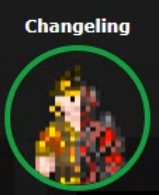
For inspiration, here is changeling's:
/datum/antagonist/changeling/get_preview_icon()
	var/icon/final_icon = render_preview_outfit(/datum/outfit/changeling)
	var/icon/split_icon = render_preview_outfit(/datum/outfit/job/engineer)

	final_icon.Shift(WEST, world.icon_size / 2)
	final_icon.Shift(EAST, world.icon_size / 2)

	split_icon.Shift(EAST, world.icon_size / 2)
	split_icon.Shift(WEST, world.icon_size / 2)

	final_icon.Blend(split_icon, ICON_OVERLAY)

	return finish_preview_icon(final_icon)
...which creates:
Creating the tgui representation
In the .ts file you created earlier, you must now give the information of your antagonist. For reference, this is the changeling's:
import { Antagonist, Category } from "../base";
import { multiline } from "common/string";

const Changeling: Antagonist = {
  key: "changeling", // This must be the same as your filename
  name: "Changeling",
  description: [
    multiline`
      A highly intelligent alien predator that is capable of altering their
      shape to flawlessly resemble a human.
    `,

    multiline`
      Transform yourself or others into different identities, and buy from an
      arsenal of biological weaponry with the DNA you collect.
    `,
  ],
  category: Category.Roundstart, // Category.Roundstart, Category.Midround, or Category.Latejoin
};

export default Changeling;
Readying the Dynamic ruleset
You already need to create a Dynamic ruleset, so in order to get your antagonist recognized, you just need to specify antag_flag. This must be unique per ruleset.
Two other values to note are antag_flag_override and antag_preference.
antag_flag_override exists for cases where you want the banned antagonist to be separate from antag_flag. As an example: roundstart, midround, and latejoin traitors have separate antag_flag, but all have antag_flag_override = ROLE_TRAITOR. This is because admins want to ban a player from Traitor altogether, not specific rulesets.
If antag_preference is set, it will refer to that preference instead of antag_flag. This is used for clown operatives, which we want to be on the same preference as standard nuke ops, but must specify a unique antag_flag for.
Updating special_roles
In code/__DEFINES/role_preferences.dm (the same place you'll need to make your ROLE_* defined), simply add your antagonist to the special_roles assoc list. The key is your ROLE, the value is the number of days since your first game in order to play as that antagonist.